

Set up the widget
· Any plan · 2 min
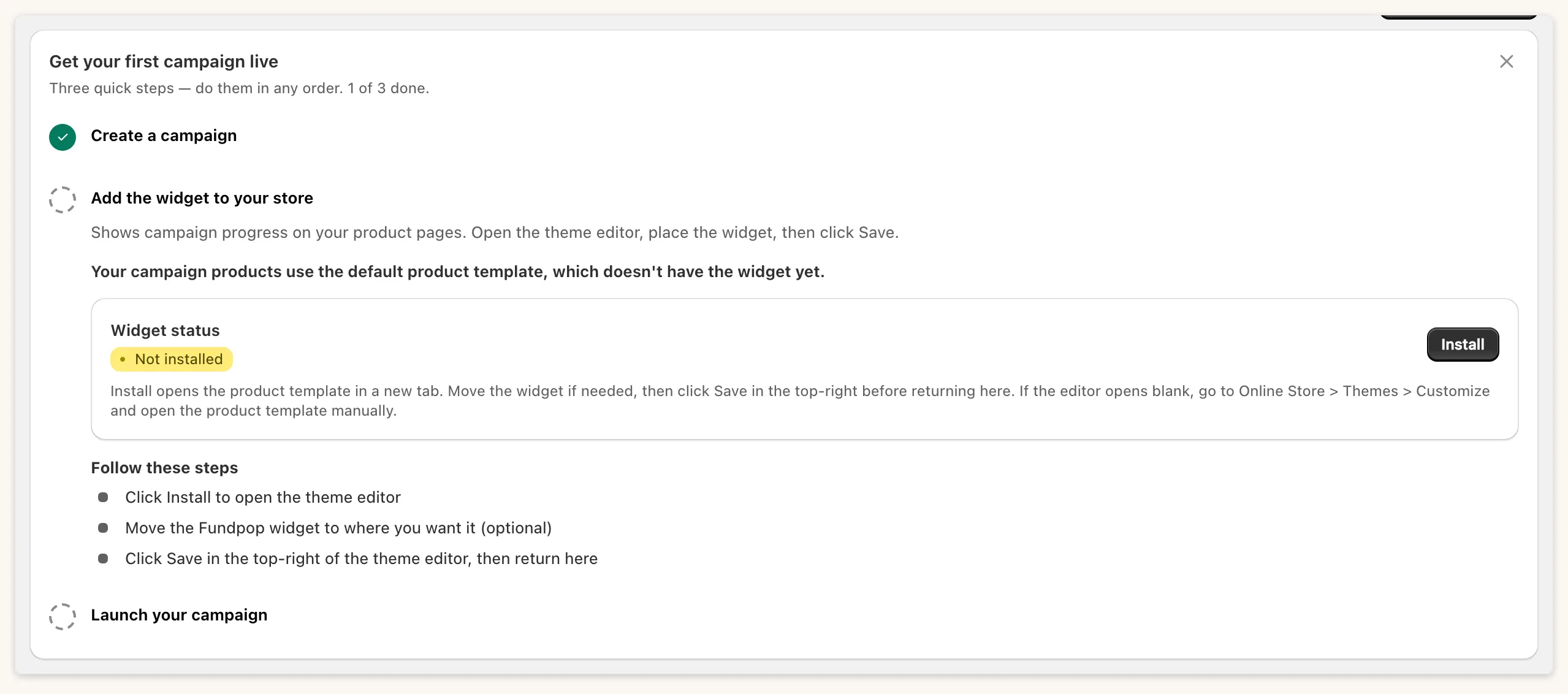
Before a campaign can appear on your storefront, the Main Widget (or a classic-theme snippet) needs to be on the product template. The setup guide, Get your first campaign live, lists three steps you can do in any order.
Online Store 2.0 themes
Section titled “Online Store 2.0 themes”- Open the setup guide and choose the step to Add the widget to your store.
- Shopify’s theme editor opens. Place the Main Widget block on the product template, then click Save.
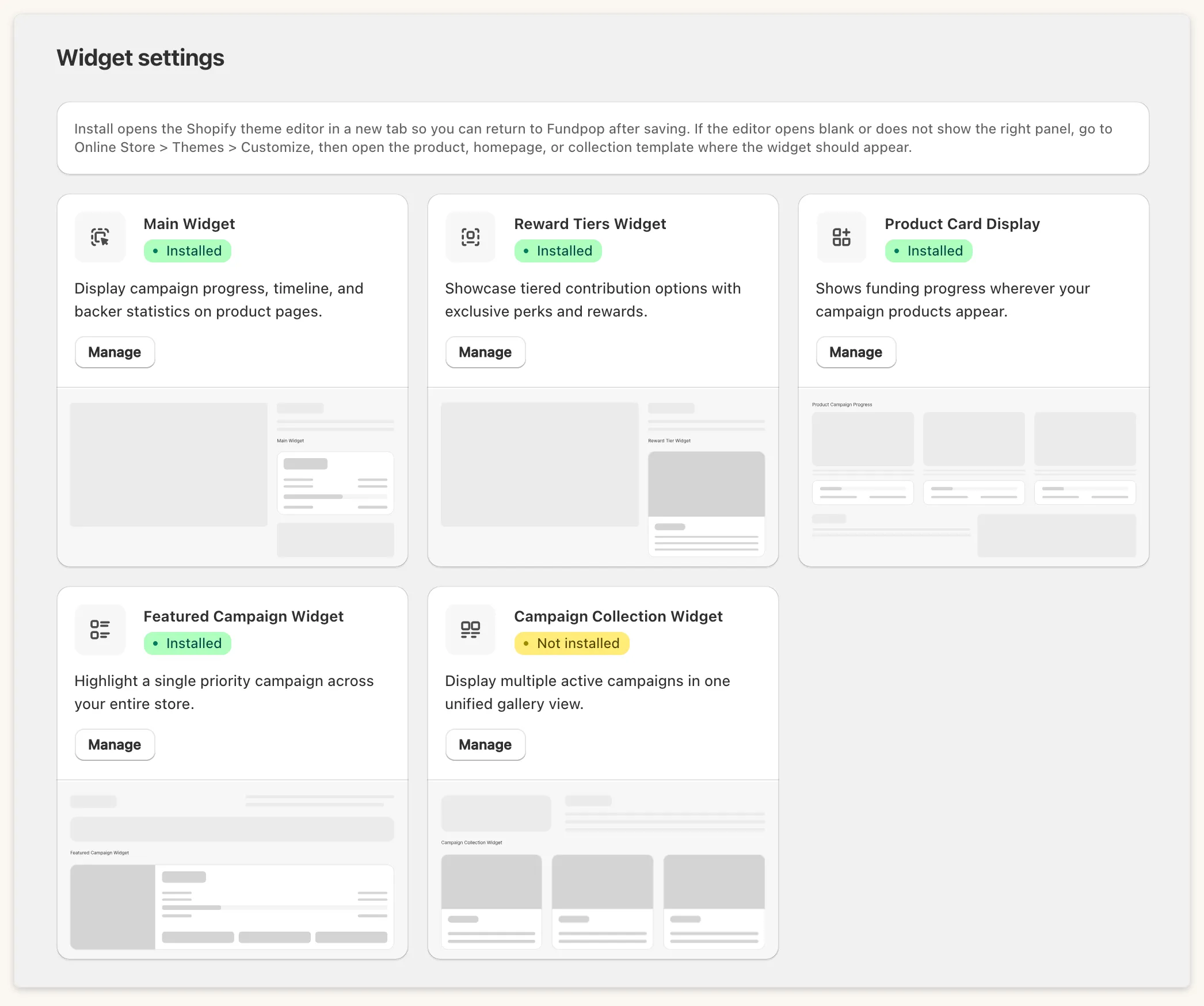
Confirm the status on Widgets.
What the statuses mean
Section titled “What the statuses mean”| Status | Meaning |
|---|---|
| Installed | The widget is in your theme and visible. |
| Not installed | It is not in your theme yet. |
| Hidden | “Installed but not visible in your theme. Open the theme editor and toggle it on.” |
| Partly installed | A product template is missing it: “Add it to every product template your campaign products use.” |
| Upgrade required | Your plan does not include this widget. |
| Detecting… | Fundpop is still checking your theme. |
Classic themes
Section titled “Classic themes”If your theme does not support app blocks, the guide offers Chat with us, free install, and our team installs it, usually within one business day. You can also choose Install with liquid and add the snippet yourself. After a theme change, use I switched themes, check again. See Classic themes.
Check the storefront
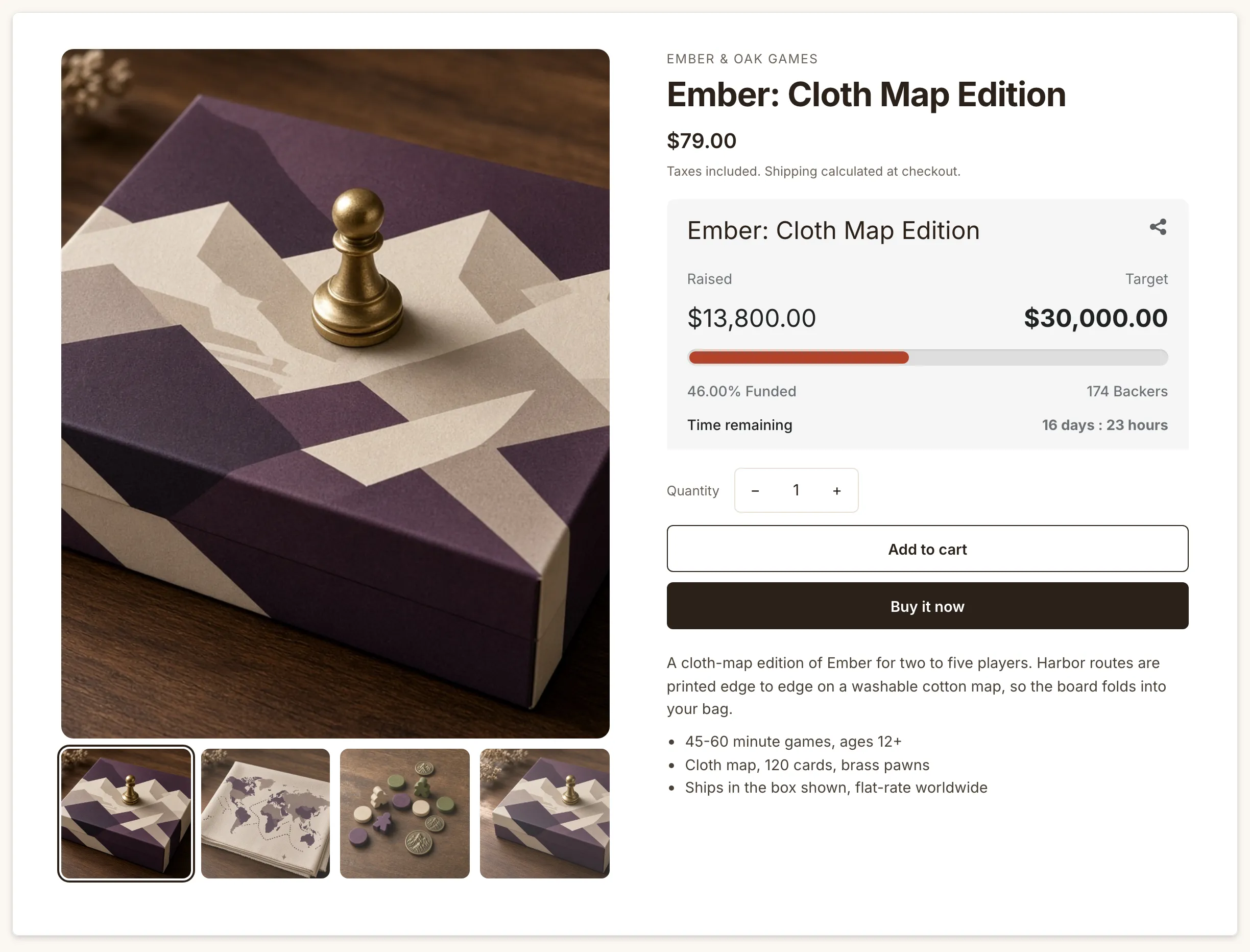
Section titled “Check the storefront”Open a campaign product page. With an Active campaign you should see the Main Widget on the product page.
Common questions
Section titled “Common questions”The card says Partly installed. See Widget not showing?.
Do I need a plan first? A plan is required to run campaigns; development stores are exempt. Every shop has one 7-day free trial.